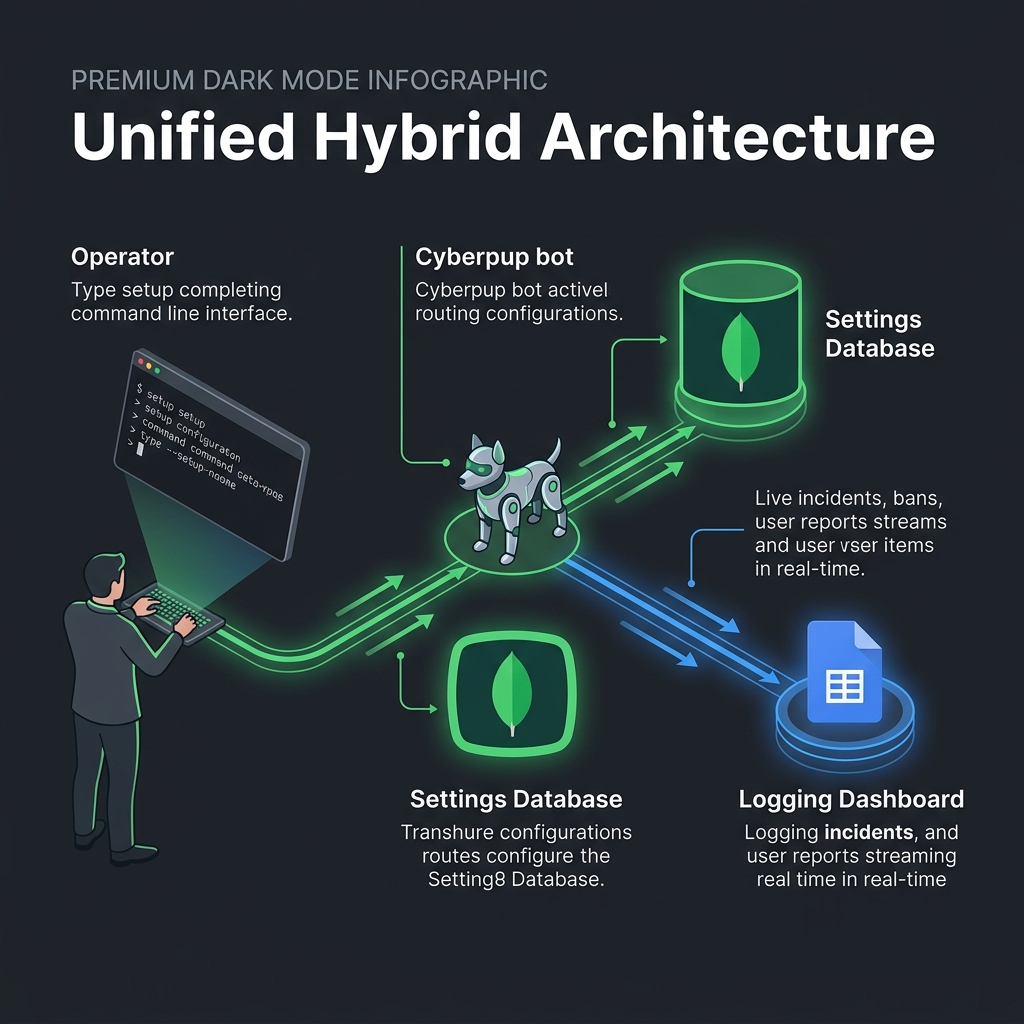
🤖 Hybrid Telemetry Architecture
Cyberpup utilizes a parallel dual-storage architecture designed for high availability and analytical transparency. Bot operational parameters and active configuration structures are stored persistently in MongoDB (allowing live overrides from Telegram admin commands), while system operations, bans, warning states, and moderator reports log in real-time to a shared Google Sheets dashboard.
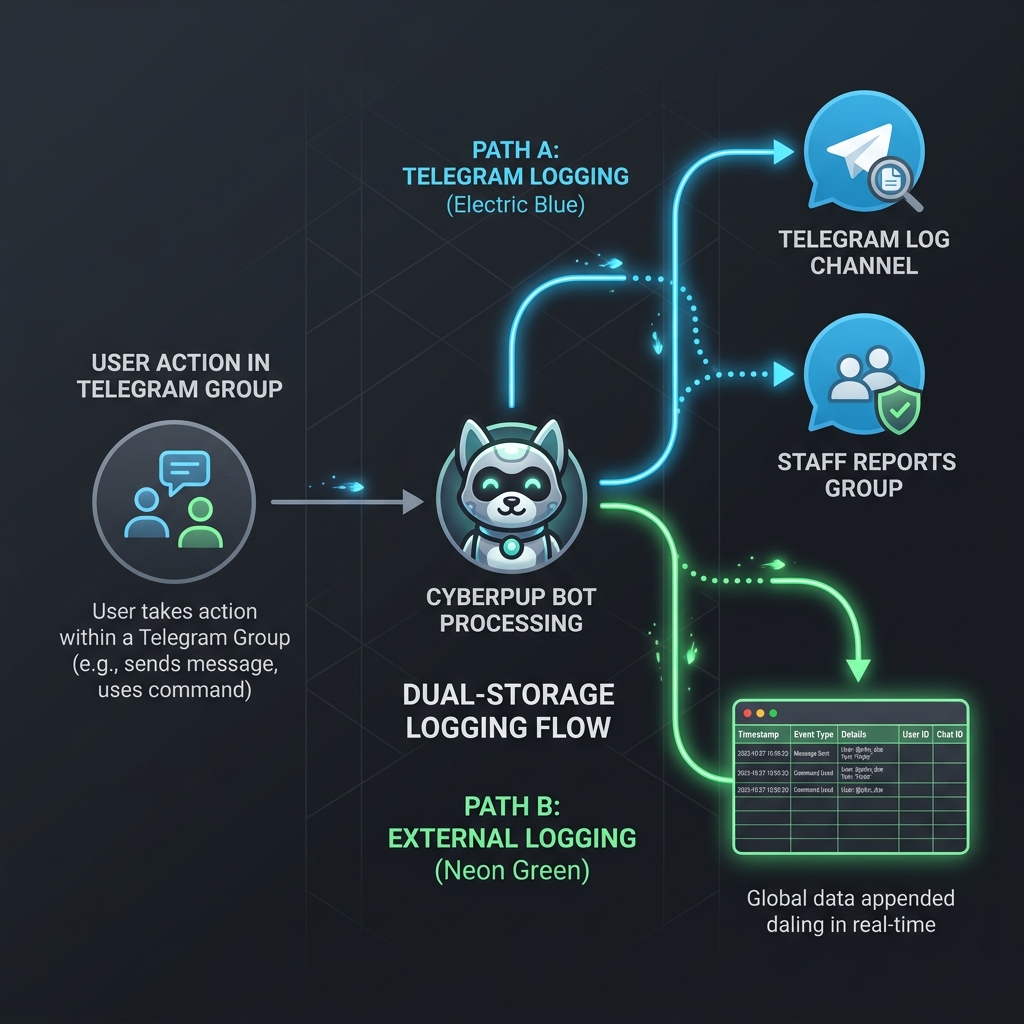
⚡ Dual-Storage Event Routing
Every moderation event, warning, ban, or staff summon triggers parallel tasks: dispatching to specialized Telegram log channels and writing a row to corresponding sheets. This guarantees that your historical data remains searchable in a spreadsheet dashboard even if message history inside Telegram logs gets pruned.
💬 Connected Chat Rooms Configuration
To establish Cyberpup protection and log synchronization, ensure the appropriate rooms are initialized and bound to the bots using targeted owner/sudo command strings.
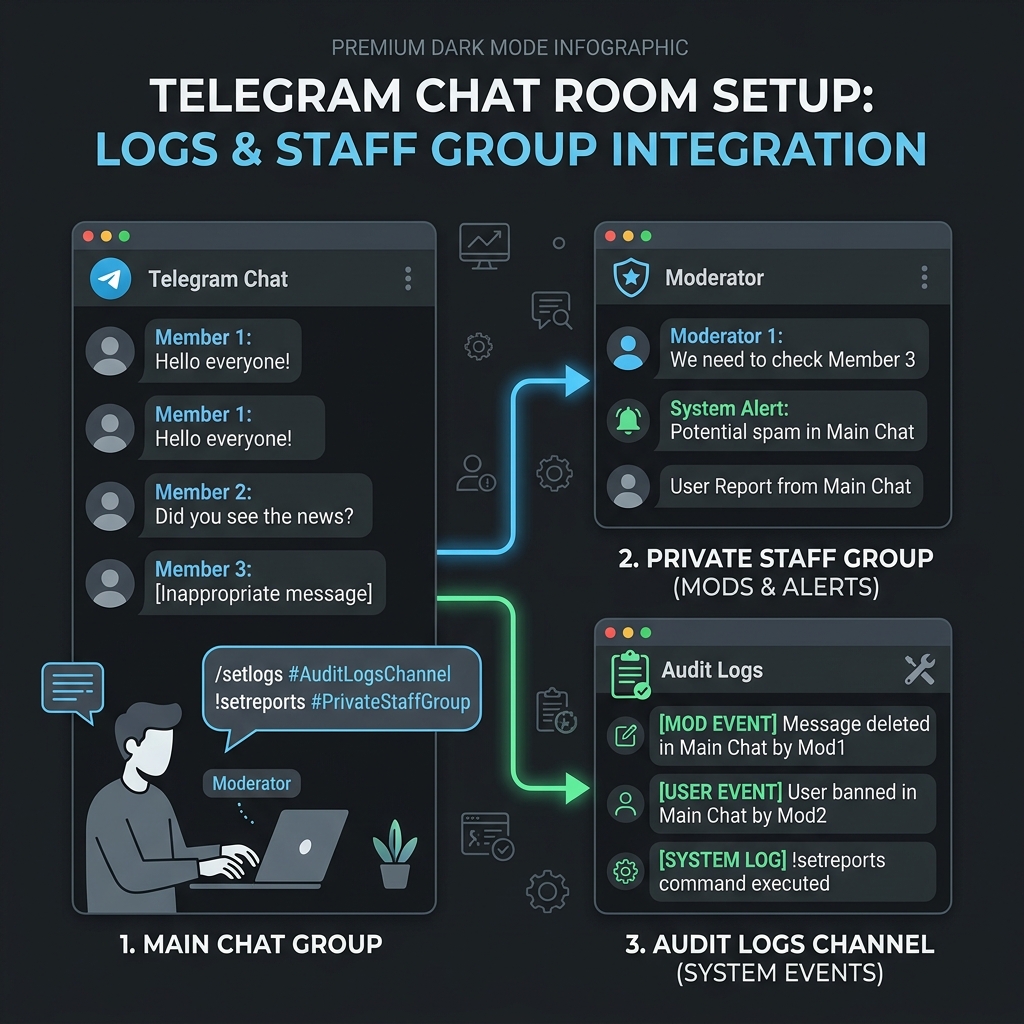
👮 Security Config Commands
Configure the defensive routing blocks for Cyberpup Security. Run these commands as the bot owner to save values to MongoDB and sync with the Google Sheet.
1. Main Groups
Register the group chats that the bot actively monitors.
2. Staff Incident Queue
Route user reports and admin summons to this private staff chat room.
3. General Audit Logs
Set target channel or group for moderation events (Bans, Mutes, Warns).
🛡️ Core Config Commands
Set configurations for Cyberpup Core, handling global bans and system-level operations.
1. Log Channel
Route general Pyrogram events and system actions.
2. Global Ban (Gban) Logs
Establish the network-wide gban log output channel.
3. Message Dump Chat
Route message backup and user inspections.
📁 Worksheet 1: Staff Incidents
This worksheet serves as the live staff dispatch log, storing reports generated by `/report` or automated alerts triggered by user `@admin` pings.
| Column Name | Sample Data | Description |
|---|---|---|
| Timestamp | 2026-06-07 07:18:45 UTC |
The precise date and time of the incident report. |
| Incident ID | #INC-837A92 |
Unique hashed identifier generated for tracking and resolution. |
| Main Group | Cyberpup Dev Chat |
The title of the group where the trigger took place. |
| Triggered By | @friskypup |
The user who issued the report or summon. |
| Offender | @spambot_3000 |
The targeted user account (if applicable). |
| Event Type | 🚨 ADMIN_SUMMON |
Indicates if it was a user-issued report or an automated summon. |
| Context | "Hey @admin, this guy is flooding links!" |
The message payload surrounding the trigger event. |
📁 Worksheet 2: General Logs
Records standard moderation logs (Bans, Mutes, Warnings, Mentions) executed across all main groups.
| Column Name | Sample Data | Description |
|---|---|---|
| Timestamp | 2026-06-07 07:20:10 UTC |
Precise timestamp of the moderator action. |
| Event Type | 🚫 BAN |
The specific category of moderation action taken. |
| Target User | @malicious_user (ID: 987654) |
The user being penalized. |
| Moderator | @security_lead (ID: 123456) |
The staff member or bot module enacting the decision. |
| Reason | "Posting spam links" |
The reason provided for the moderation event. |
🎨 Telemetry Emoji Glossary
Cyberpup logs utilize unique visual tags to make the logs easily scannable at a glance. Filter the grid below by selecting a category.
📋 Interactive Setup Checklist
Track your setup progress as you bind the rooms and initialize the sheets. Your progress is saved automatically.
Step 1: Invite Bots to Rooms
Add both CyberPUPCorebot and CyberPUPSecuritybot as Administrators to your Main Group, Private Staff Group, and Audit Logs Channel.
Step 2: Retrieve Chat IDs
Execute !chatid (Security) or /id (Core) in each of the three chats to copy the numeric identifiers (e.g. -100123456789).
Step 3: Setup Google Secret Manager
Ensure CYBERPUP_GOOGLE_SA_KEY and CYBERPUP_GOOGLE_SHEET_ID are configured in Google Cloud Secret Manager, and share your Google Sheet with the Service Account email as Editor.
Step 4: Bind Security Groups
Run !setmain <main_id>, !setreports <reports_id>, and !setlogs <logs_id> in the bots' DM to bind security routes.
Step 5: Bind Core Logs
Run /setlogs <logs_id>, /setgbanlogs <gban_logs_id>, and /setdump <dump_id> in the Core log target chats.
Step 6: Verify Google Sheet Sync
Verify that the bots automatically created the tabs Core Settings and Security Settings inside the Google Sheet and that logs start populating.